Cyberpunk Librarian – Episode 24 – Delicious 3.14159 episode artwork

EPISODE · Nov 3, 2014 · 39 MIN

Cyberpunk Librarian – Episode 24 – Delicious 3.14159

from Cyberpunk Librarian · host Daniel Messer

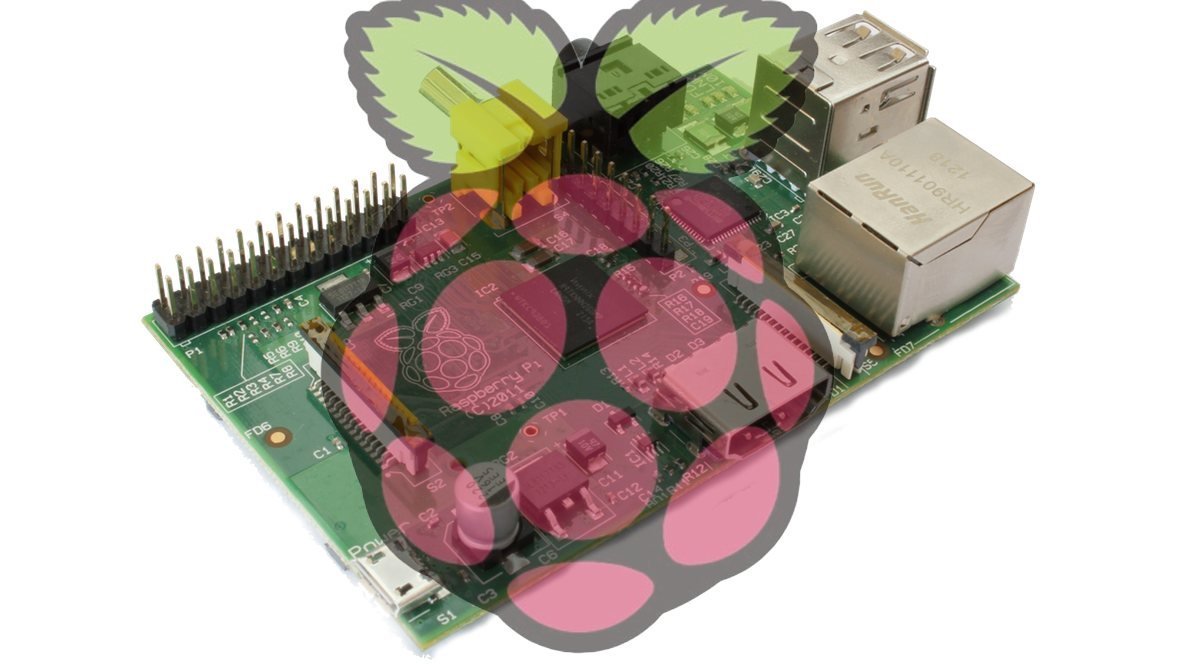
Raspberry Pis have taken the maker and geek world by storm! Little, inexpensive computers that can do so many great things? Yeah that has a lot of possibilities within the library! Join Dan and discover a project he’s working on that involves a Raspberry Pi. Notes Outline for what I’ve done for a digital shelf talker unit powered by Raspberry Pi. Raspberry Pi Model B  – uses a MicroSD and has four USB ports Using a kit I found on Amazon. Links in the shownotes The great thing about this kit isn’t just the case and plugs but also the WiFi plug. That’s what you really need for a project like this. Screenly OSE Managed through web browser Displays slides, MP4s, and websites as a digital signage solution Easier to use and set up than Xibo. I love it! OSE is the FOSS edition, there is a paid solution with more spiffs – check it out Using the custom image found on Screenly OSEs website, I flashed that to the SD card using Win32DiskImager – an open source app that is excellent for this The Screenly OSE custom image is just Raspbian with Screenly OSE pre-installed. Save yourself some time, just use it. Flash that to the SD card, pop the card in your Raspberry Pi, hook everything up, and plug it in! Plug into a live ethernet jack that allows access to the Internet. You’ll need that to get things going. It’ll start up and go right into a demo display with a video. Let that play through and then hit CTRL ALT F1 to get to a login prompt. The login is the default for Raspberry Pi and Raspbian, the user is pi and the password is raspberry – all lower case. So the tricky part isn’t getting Screenly OSE to work it’s getting the Pi to automatically connect to WiFi. Over ethernet it’s great! Wifi needs a little tweaking To do this, we need to install a better network manager. It’s spelled wicd, but to keep it straight in my head I call it “wicked” which will make more sense in a few moments. Getting wicd installed is pretty easy. I’ll have this info listed in the show notes, so don’t feel like you have to write things down furiously. Type sudo apt-get update and then sudo apt-get install wicd-curses. So I call the network manager wicked and the whole thing is wicked curses, see? sudo wicd-curses You’ll get a pretty simple interface to set up your wifi connection, link to more information in the show notes but I bet you’ll figure it out pretty quickly Set up your wifi access (choose it, password if needed, etc) and make sure you set it up to connect automatically! After that, hit F10 to save the setup and then SHIFT C to connect. If you did it all correctly, the wifi connects up! BRILLIANT! Oh except for the fact that it won’t do this automatically upon boot, not yet Okay so the trick is that we need to get the wicd service to start automatically. To do that, we need to edit the /etc/profile file to start the service on login. When Screenly OSE starts, it logs in. Whenever someone logs in, /etc/profile is invoked So let’s cd /etc and, just to be safe, make a copy with sudo cp profile profile.bak, then sudo nano profile To start the service, add sudo service wicd start to the end of that profile CTRL X and save Moment of truth time. Disconnect your ethernet cable and reboot the Pi When Screenly OSE comes up, it may or may not show you the IP for the Pi. Sometimes it doesn’t get the wifi connection in time to display it. To verify your wifi connection, do the CTRL ALT F1 and login again. type ifconfig and you should see an IP under WLAN0. There you go! Pop that into a web browser on your network and you can manage Screenly OSE! You can set up a persistent IP if you want. Me, I prefer to just set it up as a DHCP reservation at the router. Links My preferred Raspberry Pi kit – comes with everything you need except a keyboard, mouse, and monitor! Screenly OSE – Digital signage made simple and powered by Pi. Win32DiskImage – A FOSS solution for writing disk images to SD cards. WiFi on a Raspberry Pi: A Simple Guide – Great resource that helped me along. Easy Wireless Configuration for a Raspberry Pi – Another excellent resource that answered a bunch of questions. Music Ice Cold by Jason Shaw Adeu by Peter Sharp Bellydance at Ebisu by Ryo Miyashita

Raspberry Pis have taken the maker and geek world by storm! Little, inexpensive computers that can do so many great things? Yeah that has a lot of possibilities within the library! Join Dan and discover a project he’s working on that involves a Raspberry Pi. Notes Outline for what I’ve done for a digital shelf talker unit powered by Raspberry Pi. Raspberry Pi Model B  – uses a MicroSD and has four USB ports Using a kit I found on Amazon. Links in the shownotes The great thing about this kit isn’t just the case and plugs but also the WiFi plug. That’s what you really need for a project like this. Screenly OSE Managed through web browser Displays slides, MP4s, and websites as a digital signage solution Easier to use and set up than Xibo. I love it! OSE is the FOSS edition, there is a paid solution with more spiffs – check it out Using the custom image found on Screenly OSEs website, I flashed that to the SD card using Win32DiskImager – an open source app that is excellent for this The Screenly OSE custom image is just Raspbian with Screenly OSE pre-installed. Save yourself some time, just use it. Flash that to the SD card, pop the card in your Raspberry Pi, hook everything up, and plug it in! Plug into a live ethernet jack that allows access to the Internet. You’ll need that to get things going. It’ll start up and go right into a demo display with a video. Let that play through and then hit CTRL ALT F1 to get to a login prompt. The login is the default for Raspberry Pi and Raspbian, the user is pi and the password is raspberry – all lower case. So the tricky part isn’t getting Screenly OSE to work it’s getting the Pi to automatically connect to WiFi. Over ethernet it’s great! Wifi needs a little tweaking To do this, we need to install a better network manager. It’s spelled wicd, but to keep it straight in my head I call it “wicked” which will make more sense in a few moments. Getting wicd installed is pretty easy. I’ll have this info listed in the show notes, so don’t feel like you have to write things down furiously. Type sudo apt-get update and then sudo apt-get install wicd-curses. So I call the network manager wicked and the whole thing is wicked curses, see? sudo wicd-curses You’ll get a pretty simple interface to set up your wifi connection, link to more information in the show notes but I bet you’ll figure it out pretty quickly Set up your wifi access (choose it, password if needed, etc) and make sure you set it up to connect automatically! After that, hit F10 to save the setup and then SHIFT C to connect. If you did it all correctly, the wifi connects up! BRILLIANT! Oh except for the fact that it won’t do this automatically upon boot, not yet Okay so the trick is that we need to get the wicd service to start automatically. To do that, we need to edit the /etc/profile file to start the service on login. When Screenly OSE starts, it logs in. Whenever someone logs in, /etc/profile is invoked So let’s cd /etc and, just to be safe, make a copy with sudo cp profile profile.bak, then sudo nano profile To start the service, add sudo service wicd start to the end of that profile CTRL X and save Moment of truth time. Disconnect your ethernet cable and reboot the Pi When Screenly OSE comes up, it may or may not show you the IP for the Pi. Sometimes it doesn’t get the wifi connection in time to display it. To verify your wifi connection, do the CTRL ALT F1 and login again. type ifconfig and you should see an IP under WLAN0. There you go! Pop that into a web browser on your network and you can manage Screenly OSE! You can set up a persistent IP if you want. Me, I prefer to just set it up as a DHCP reservation at the router. Links My preferred Raspberry Pi kit – comes with everything you need except a keyboard, mouse, and monitor! Screenly OSE – Digital signage made simple and powered by Pi. Win32DiskImage – A FOSS solution for writing disk images to SD cards. WiFi on a Raspberry Pi: A Simple Gu

NOW PLAYING

Cyberpunk Librarian – Episode 24 – Delicious 3.14159

0:00 39:06

No transcript for this episode yet

We transcribe on demand. Request one and we'll notify you when it's ready — usually under 10 minutes.

Vampires of the Paper Flower Consortium Elizabeth Guizzetti Come for the evening, stay for eternity! Paper Flower Consortium is a podcast from the largest vampire coven in Seattle. Their stories are told by Loretta Fabron Onfoy, coven historian and librarian, in the hope that the modern vampire's way of life is not lost during the next great language transformation. Some tales in this anthology are horrific, some are droll, some are filled with misadventure--just like any eternal existence. Episodes sponsored by the Paper Flower Consortium's Business Community. The history is followed by questions from curious initiates. Want to ask Lady Loretta a question about vampirism? Have a topic you want to see discussed? Email [email protected] Beyond the Dark Mark R. Healy Atmospheric sci-fi stories. You might find yourself in the heart of a cyberpunk metropolis, a post-apocalyptic wasteland, or an alien world. Each story features its own original music score for a truly immersive experience. Rudy Rucker Podcasts Rudy Rucker Readings, interviews, talks, and Q&A sessions. Rudy Rucker is the author of 20 science fiction novels, plus nonfiction books on infinity and on the fourth dimension. He's a cyberpunk and a transrealist---writing SF about real life. The Children's Book Podcast Matthew C. Winner Celebrating the power of storytelling to reflect our world, expand our perspectives, and foster connections between readers of all ages. The Children's Book Podcast features interviews with authors, illustrators, and everyone involved in taking a book from drawing board to bookshelf. Hosted by Matthew C. Winner, a teacher, librarian, writer, and fan of kids. Brought to you in partnership with Boyds Mills, positively impacting kids by amplifying the voices of storytellers who inform, educate, and inspire children to become their best selves.

Frequently Asked Questions

How long is this episode of Cyberpunk Librarian?

This episode is 39 minutes long.

When was this Cyberpunk Librarian episode published?

This episode was published on November 3, 2014.

What is this episode about?

Raspberry Pis have taken the maker and geek world by storm! Little, inexpensive computers that can do so many great things? Yeah that has a lot of possibilities within the library! Join Dan and discover a project he’s working on that involves a...

Can I download this Cyberpunk Librarian episode?

Yes, you can download this episode by clicking the download button on the episode player, or subscribe to the podcast in your preferred podcast app for automatic downloads.
URL copied to clipboard!