
EPISODE · Aug 12, 2026 · 17 MIN
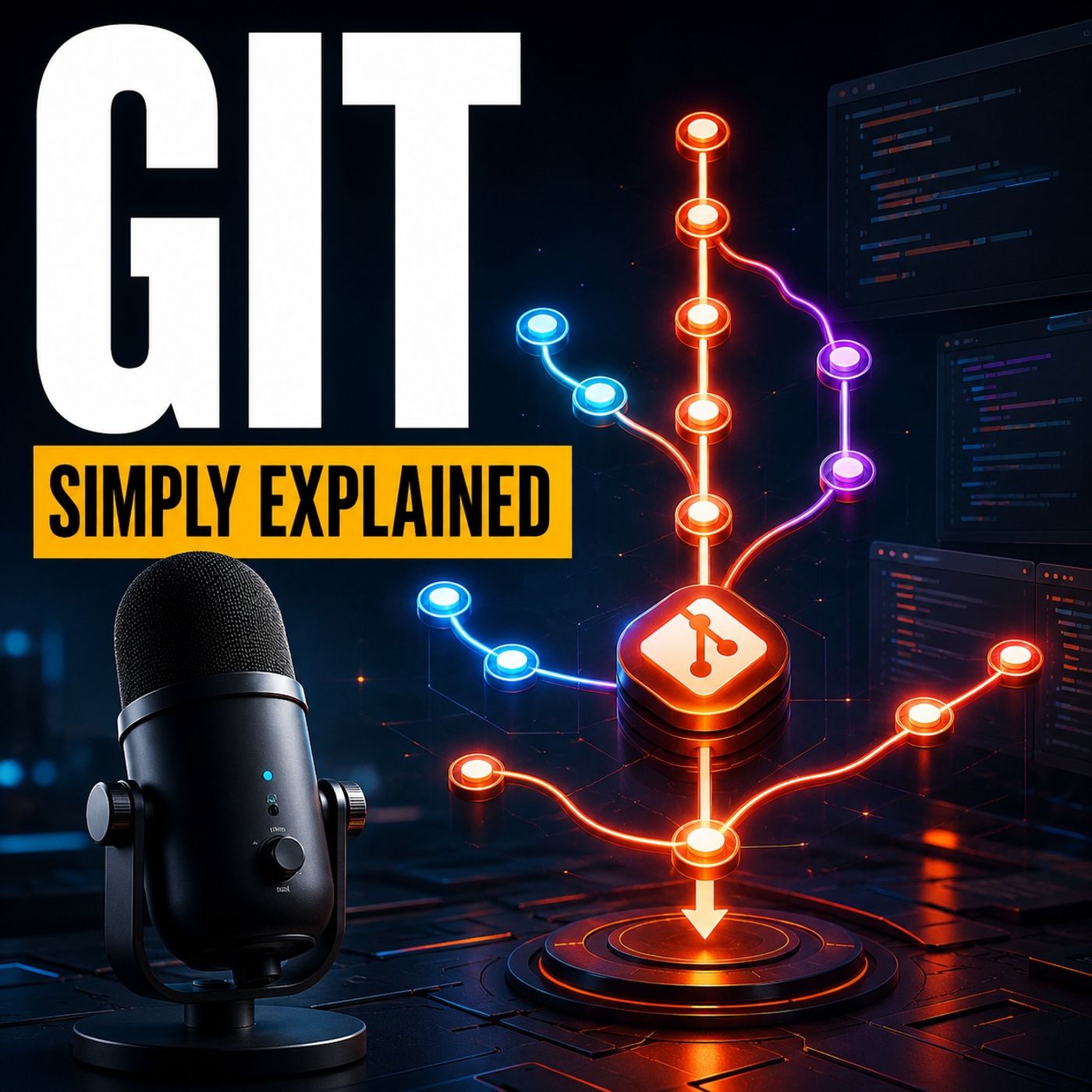
Git - Simply Explained
from M365.FM - Modern work, security, and productivity with Microsoft 365 · host Mirko Peters - Founder of m365.fm, m365.show and m365con.net
Git — Simply ExplainedHave you ever broken something that worked yesterday and then searched through folders named “final,” “final-final,” and “use-this-version”? Git replaces that confusion with a clear, traceable history of your project.In this episode of M365 FM, Mirko Peters explains Git in plain English. You will learn how commits create meaningful checkpoints, how the working directory and staging area fit together, why developers use branches, how merges and conflicts work, and where GitHub enters the workflow.WHY GIT EXISTSGit is a version control system that records the history of a project. Instead of duplicating an entire folder whenever something works, Git allows you to create deliberate checkpoints that can be reviewed and compared later.If a new change introduces a problem, Git can show which files and lines changed between versions. This makes investigating a broken application far easier than searching through old folders or attempting to reverse every edit manually.Git works especially well with code and other text-based files because it can identify small differences between versions. It can also track configuration files, documentation, website content, and many other project assets.COMMITS CREATE MEANINGFUL CHECKPOINTSA recorded checkpoint in Git is called a commit. Git does not create a commit every time you save a file. You decide when a completed piece of work deserves to become part of the project history.A commit might add a sign-in option, correct a password-reset link, or update important text. Each commit should contain one clear and related change.Useful commit messages explain what happened. A message such as “Fix password reset link” gives future developers meaningful context. Messages such as “Updates” or “Various changes” make the history much harder to understand when someone investigates a problem months later.Small, focused commits are easier to review, compare, and reverse without affecting unrelated work.GIT WORKS LOCALLY FIRSTGit runs on your own computer. You can create commits, inspect changes, and use branches without an internet connection or an online hosting service.This local-first design is important because Git and GitHub are different technologies. Git tracks the project and its history, while GitHub provides an online location where people can share and review Git repositories.A developer can therefore use Git alone for a personal project. GitHub becomes valuable when that project needs to be shared with other people or accessed from different computers.THE WORKING DIRECTORYThe working directory is the ordinary project folder on your computer. It contains the files you open, create, edit, and delete.Think of it as your desk. Work can be unfinished or messy there, and Git does not automatically force every modification into the permanent project history.The git status command shows what has changed since the last commit. It identifies modified, new, and deleted files and indicates which changes have already been prepared for the next checkpoint.For beginners and experienced developers alike, git status is one of the most useful Git safety checks.THE STAGING AREAThe staging area sits between active work and recorded history. Think of it as a review tray where you place only the changes intended for the next commit.Suppose you fix a password-reset link while also beginning an unfinished redesign. The completed fix can be staged while the redesign remains in the working directory.The git add command places selected changes into the staging area. Despite its name, this command does not permanently record the work or send anything online. It prepares the selected version of a file for the next commit.This extra step gives developers precise control over which changes belong together.THE LOCAL REPOSITORYThe local repository stores your commits and project history on your computer. Once the staging area contains the correct changes, git commit records them as one checkpoint.The basic local route is straightforward: edit files in the working directory, inspect the situation with git status, select the intended changes with git add, and record them with git commit.The working directory is where you work. The staging area is where you choose. The local repository is where Git records that choice.BRANCHES CREATE SAFE LINES OF WORKA commit provides a safe point in history, while a branch provides a separate place to develop what comes next.Most projects have a branch called main, representing the version the team currently trusts. Instead of placing incomplete work directly into main, developers create focused branches for individual features, improvements, or bug fixes.A branch begins from an existing commit and builds its own line of history. Developers can test ideas and create several commits without disturbing the trusted version of the project.Branches also allow several people to work simultaneously. One developer can repair a login problem while another builds a new authentication option.HOW MERGES WORKWhen the work on a branch is complete and approved, it can be combined with another branch through a merge.Git can usually merge changes automatically when they affect different files or unrelated sections. The approved feature then becomes part of main, preserving the project history that led to it.Teams often delete the completed branch after merging it. The commits remain safely stored in Git, while the active branch list stays manageable.WHY MERGE CONFLICTS HAPPENA merge conflict occurs when different branches change the same part of the same file in incompatible ways. Git can identify both versions, but it cannot understand which one reflects the team’s intended decision.Instead of guessing and potentially deleting useful work, Git pauses the merge and asks a person to resolve the conflict.The developer reviews both versions, selects or combines the correct content, tests the result, and records the resolution. A conflict does not mean the repository is broken. It means Git is carefully protecting competing changes.Short-lived branches and frequent synchronization with main help keep conflicts smaller and easier to understand.GIT AND GITHUB ARE NOT THE SAME THINGGit is the version-control tool installed on your computer. GitHub is an online platform for hosting, sharing, discussing, and reviewing Git repositories.GitHub stores a shared online copy called a remote repository. Each developer still has a local repository containing files, commits, and branches, while the remote gives the entire team a common meeting point.GitHub is a popular choice, but Git repositories can also be hosted through GitLab, Bitbucket, Azure DevOps, and other platforms. The hosting service can change while the underlying Git concepts remain the same.CLONE, PUSH, AND PULLThree important Git operations describe how local and remote repositories exchange work.Cloning creates a connected local copy of an existing remote repository, including the project files and history.Pushing sends locally created commits to the remote repository so other team members can access them.Pulling brings the latest shared changes from the remote repository into your local copy.The concepts are primarily about direction: clone creates your connected copy, push sends committed work outward, and pull brings shared work back to you.PULL REQUESTS AND CODE REVIEWSWhen a branch is ready, teams commonly open a pull request before merging it into main.A pull request asks teammates to inspect the proposed changes. Reviewers can examine commits, files, and individual lines, leave comments, request corrections, or approve the work.This keeps the discussion connected directly to the changes instead of spreading decisions across emails and chat messages.Automated checks can also build the project, run tests, inspect code quality, and scan for known security issues. These checks support human reviewers, but they cannot determine whether the feature solves the correct business problem. Final responsibility remains with the team.A PRACTICAL GIT TEAM WORKFLOWA typical workflow begins by pulling the latest version of main. The developer then creates a clearly named branch, makes one focused change, tests it, selects the relevant files, and creates a descriptive commit.The branch is pushed to the remote repository, and a pull request is opened for review. Feedback or failed automated checks can be addressed through additional commits.Once the review is approved and all required checks pass, the branch is merged into main. The team can then pull the updated version and continue from the same trusted project history.The everyday route is simple: update, branch, change, stage, commit, push, review, and merge.ㅤHOW GIT SUPPORTS CI/CDGit provides a reliable project record that other systems can use to trigger automated processes.A push or pull request might start a build, run automated tests, validate configuration, or perform a security scan. A merge into main might prepare an application for release or deploy it into an environment.Continuous Integration brings small changes together frequently and checks whether they continue to work as one project. Continuous Delivery or Deployment moves validated versions toward release with fewer manual steps.Git does not perform every build, test, or deployment itself. It identifies the exact version that connected automation tools should process.Become a supporter of this podcast: https://www.spreaker.com/podcast/m365-fm-modern-work-security-and-productivity-with-microsoft-365--6704921/support.
Embed this episode
What this episode covers
Git — Simply ExplainedHave you ever broken something that worked yesterday and then searched through folders named “final,” “final-final,” and “use-this-version”? Git replaces that confusion with a clear, traceable history of your project.In this episode of M365 FM, Mirko Peters explains Git in plain English. You will learn how commits create meaningful checkpoints, how the working directory and staging area fit together, why developers use branches, how merges and conflicts work, and where GitHub enters the workflow. WHY GIT EXISTS Git is a version control system that records the history of a project. Instead of duplicating an entire folder whenever something works, Git allows you to create deliberate checkpoints that can be reviewed and compared later.If a new change introduces a problem, Git can show which files and lines changed between versions. This makes investigating a broken application far easier than searching through old folders or attempting to reverse every edit manually.Git works especially well with code and other text-based files because it can identify small differences between versions. It can also track configuration files, documentation, website content, and many other project assets. COMMITS CREATE MEANINGFUL CHECKPOINTS A recorded checkpoint in Git is called a commit. Git does not create a commit every time you save a file. You decide when a completed piece of work deserves to become part of the project history.A commit might add a sign-in option, correct a password-reset link, or update important text. Each commit should contain one clear and related change.Useful commit messages explain what happened. A message such as “Fix password reset link” gives future developers meaningful context. Messages such as “Updates” or “Various changes” make the history much harder to understand when someone investigates a problem months later.Small, focused commits are easier to review, compare, and reverse without affecting unrelated work. GIT WORKS LOCALLY FIRST Git runs on your own computer. You can create commits, inspect changes, and use branches without an internet connection or an online hosting service.This local-first design is important because Git and GitHub are different technologies. Git tracks the project and its history, while GitHub provides an online location where people can share and review Git repositories.A developer can therefore use Git alone for a personal project. GitHub becomes valuable when that project needs to be shared with other people or accessed from different computers. THE WORKING DIRECTORY The working directory is the ordinary project folder on your computer. It contains the files you open, create, edit, and delete.Think of it as your desk. Work can be unfinished or messy there, and Git does not automatically force every modification into the permanent project history.The git status command shows what has changed since the last commit. It identifies modified, new, and deleted files and indicates which changes have already been prepared for the next checkpoint.For beginners and experienced developers alike, git status is one of the most useful Git safety checks. THE STAGING AREA The staging area sits between active work and recorded history. Think of it as a review tray where you place only the changes intended for the next commit.Suppose you fix a password-reset link while also beginning an unfinished redesign. The completed fix can be staged while the redesign remains in the working directory.The git add command places selected changes into the staging area. Despite its name, this command does not permanently record the work or send anything online. It prepares the selected version of a file for the next commit.This extra step gives developers precise control over which changes belong together. THE LOCAL REPOSITORY The local repository stores...
NOW PLAYING
Git - Simply Explained
No transcript for this episode yet
Similar Episodes
No similar episodes found.
Similar Podcasts
No similar podcasts found.