
EPISODE · Jun 7, 2021 · 12 MIN
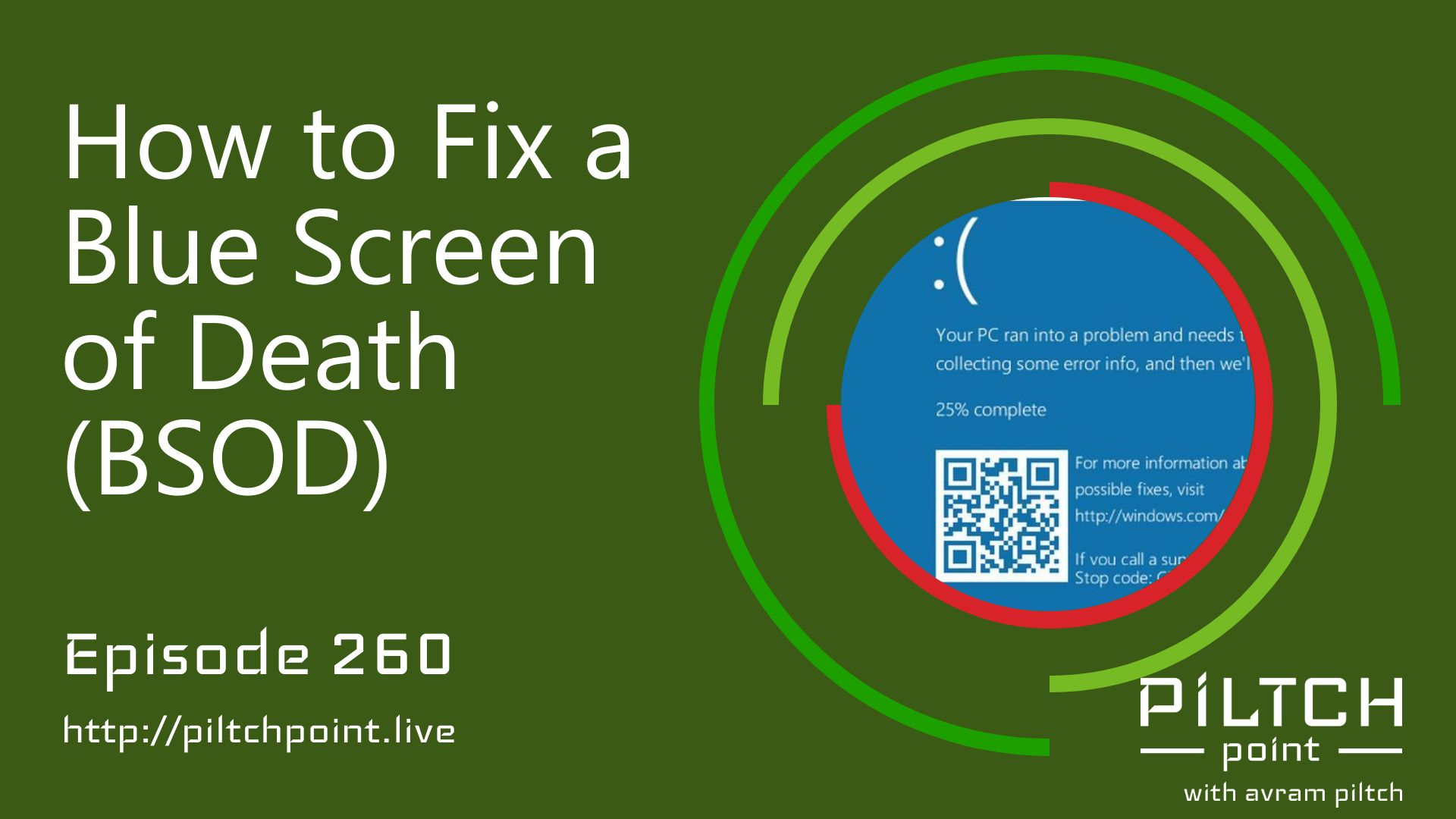
How to Fix a Blue Screen of Death (BSOD) - Episode 260
from Piltch Point (Video) · host PLUGHITZ Live
If you use a computer, you've experienced some sort of a crash. Even Apple, despite its marketing, experiences hardware failures, software conflicts, or driver issues. But, there's a very famous and painful type of computer failure that nearly everyone is familiar with: the Blue Screen of Death (BSOD). This is the screen that Windows shows when something has gone tragically wrong. To recover from one of these failures can be a challenge, but Tom's Hardware has got a lot of information to help you get back up and running.One of the best ways to recover from a BSOD is to keep the stop code or the QR code on the error screen. This can give you a lot of information about what happened because the screen can be caused by a lot of different issues. The debugging process is different for CRITICAL_PROCESS_DIED, versus IRQL_NOT_LESS_OR_EQUAL (or the various other errors). You can then head to Microsoft's page for some next steps. But, Windows is set by default to reboot after a failure, so you're up against a clock. If you lose the details, it's okay - there's another way.Windows creates a memory dump during a crash, and you can use the minidump file to debug your issue. There is software available to read and interpret the file to give you insight into what happened so you can undo it. But, even with all of the information, you might need the trial and error method.Safe Mode is a great tool for trial and error. It prevents a bunch of possibly problematic aspects of Windows from loading. From here, you can turn things on one at a time to determine if a new driver, Windows Update, or piece of software has caused the issue.
Embed this episode
What this episode covers
Description If you use a computer, you've experienced some sort of a crash. Even Apple, despite its marketing, experiences hardware failures, software conflicts, or driver issues. But, there's a very famous and painful type of computer failure that nearly everyone is familiar with: the Blue Screen of Death (BSOD). This is the screen that Windows shows when something has gone tragically wrong. To recover from one of these failures can be a challenge, but Tom's Hardware has got a lot of information to help you get back up and running. One of the best ways to recover from a BSOD is to keep the stop code or the QR code on the error screen. This can give you a lot of information about what happened because the screen can be caused by a lot of different issues. The debugging process is different for CRITICAL_PROCESS_DIED, versus IRQL_NOT_LESS_OR_EQUAL (or the various other errors). You can then head to Microsoft's page for some next steps. But, Windows is set by default to reboot after a failure, so you're up against a clock. If you lose the details, it's okay - there's another way. Windows creates a memory dump during a crash, and you can use the minidump file to debug your issue. There is software available to read and interpret the file to give you insight into what happened so you can undo it. But, even with all of the information, you might need the trial and error method. Safe Mode is a great tool for trial and error. It prevents a bunch of possibly problematic aspects of Windows from loading. From here, you can turn things on one at a time to determine if a new driver, Windows Update, or piece of software has caused the issue. Participants Scott Ertz Host Scott is a developer who has worked on projects of varying sizes, including all of the PLUGHITZ Corporation properties. He is also known in the gaming world for his time supporting the rhythm game community, through DDRLover and hosting tournaments throughout the Tampa Bay Area. Currently, when he is not working on software projects or hosting F5 Live: Refreshing Technology, Scott can often be found returning to his high school days working with the Foundation for Inspiration and Recognition of Science and Technology (FIRST), mentoring teams and helping with ROBOTICON Tampa Bay. He has also helped found a student software learning group, the ASCII Warriors, currently housed at AMRoC Fab Lab. Avram Piltch Host Avram's been in love with PCs since he played original Castle Wolfenstein on an Apple II+. Before joining Tom's Hardware, for 10 years, he served as Online Editorial Director for sister sites Tom's Guide and Laptop Mag, where he programmed the CMS and many of the benchmarks. When he's not editing, writing or stumbling around trade show halls, you'll find him building Arduino robots with his son and watching every single superhero show on the CW. Live Discussion Powered by PureVPN
NOW PLAYING
How to Fix a Blue Screen of Death (BSOD) - Episode 260
No transcript for this episode yet
Similar Episodes
No similar episodes found.