
EPISODE · Jul 24, 2008 · 4 MIN
Podfather Audacity on Eeepc900
from Podfather's podcast · host Paul Harrington
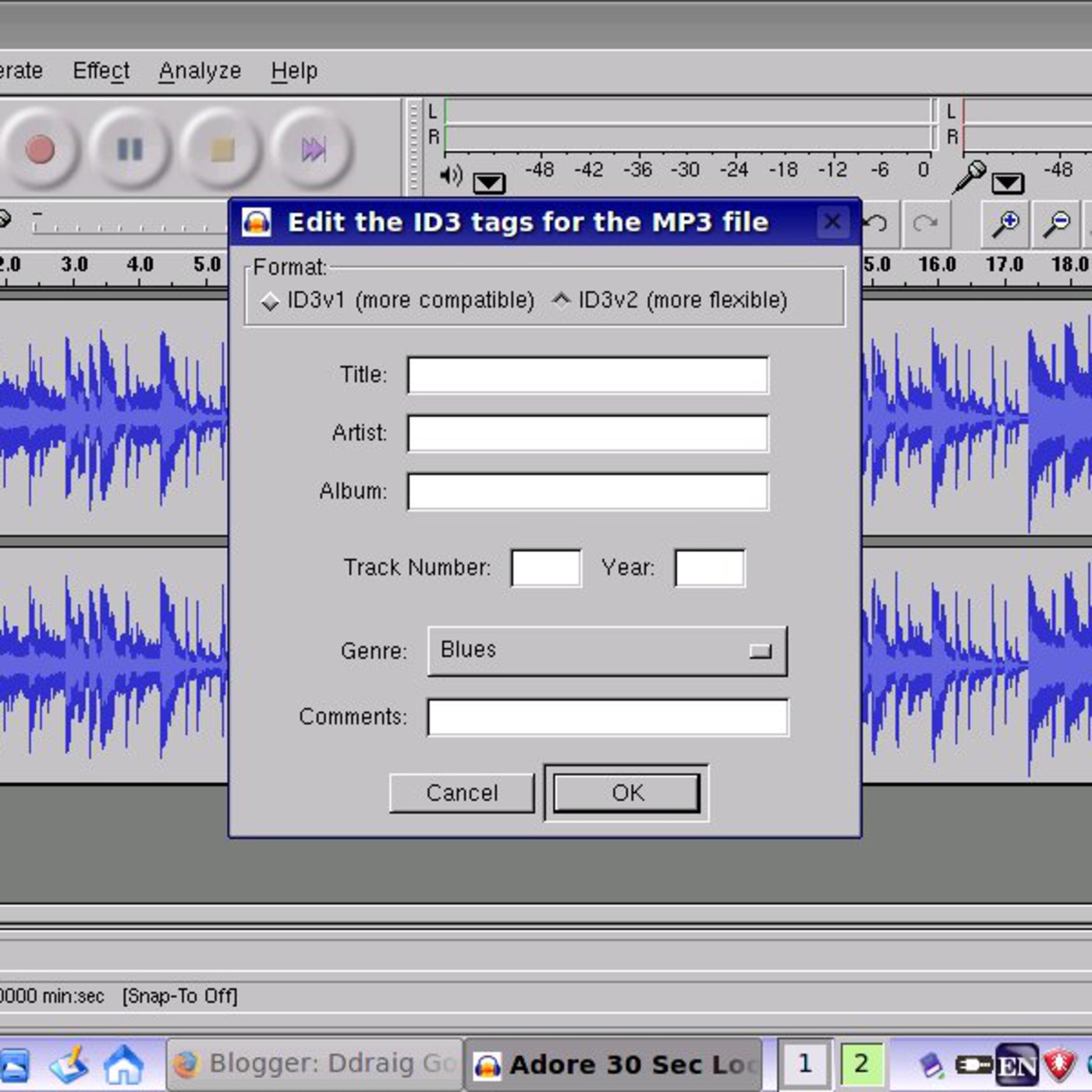
This test podcast was recorded using a Medusa Speed Link USB headset and mic together with Audacity on the Asus Eeepc900. Running Audacity on the little Asus is not difficult and only requires a minimal level of Linux programming (blog post http://ddraig-goch.blogspot.com/2008/07/further-eeepc-developments.html) So I fired up the console and typed "apt-get install audacity." Nothing happened. Actually I got some error message or other. I forget what it was. I wasn't surprised. I figured I'd have to add some repositories. To make a long story short, here is how to install Audacity, and presumably a bunch of other programs on an Eee PC: 1. Open that console window by going to File Manager and clicking Tools/Open Console Window 2. Navigate to //etc/apt 1. You do this by first typing "cd //" 2. Then type "cd etc" 3. And finally "cd apt" 3. Now it's time to edit your source list using the vi text editor 1. Type "sudo vi sources.list" 2. User the arrow keys to put your cursor just below "deb http://update.eeepc.asus.com/p701/en p701 main 3. Hit the "i" key to enter insert mode 4. Type "deb http://http.us.debian.org/debian/ stable main" 5. Hit the "esc" key to exit insert mode 6. Press "ZZ" in order to exit and save 4. Now you should be back at the console 5. Type "sudo apt-get update" to get an updated list of available packages 6. Type "sudo apt-get install audacity" to install audacity. 7. Select yes when it asks if you want to continue 8. When Audacity is done installing, type "audacity" to launch the program. Also the lame encoder will work on the little E with this coding, http://ddraig-goch.blogspot.com/2008/07/audacity-and-mp3-conversion-on-eeepc.html To compile put the lame file you downloaded in your user folder Right click it and select extract all followed by ok Go into the lame folder you just made Click tools then open console window Type sudo apt-get install build-essential then type su after you enter your password type ./configure then type make then type make install That should be it Audacity should find the file automatically. So simple but it works. Go ahead and get working on your Asus mini notebook.
Embed this episode
NOW PLAYING
Podfather Audacity on Eeepc900
No transcript for this episode yet
Similar Episodes
No similar episodes found.
Similar Podcasts
No similar podcasts found.