
EPISODE · Aug 22, 2025 · 21 MIN
Use Microsoft Copilot in Teams: Configuration Steps, Best Practices and Real Meeting Use Cases
from M365.FM - Modern work, security, and productivity with Microsoft 365 · host Mirko Peters - Founder of m365.fm, m365.show and m365con.net
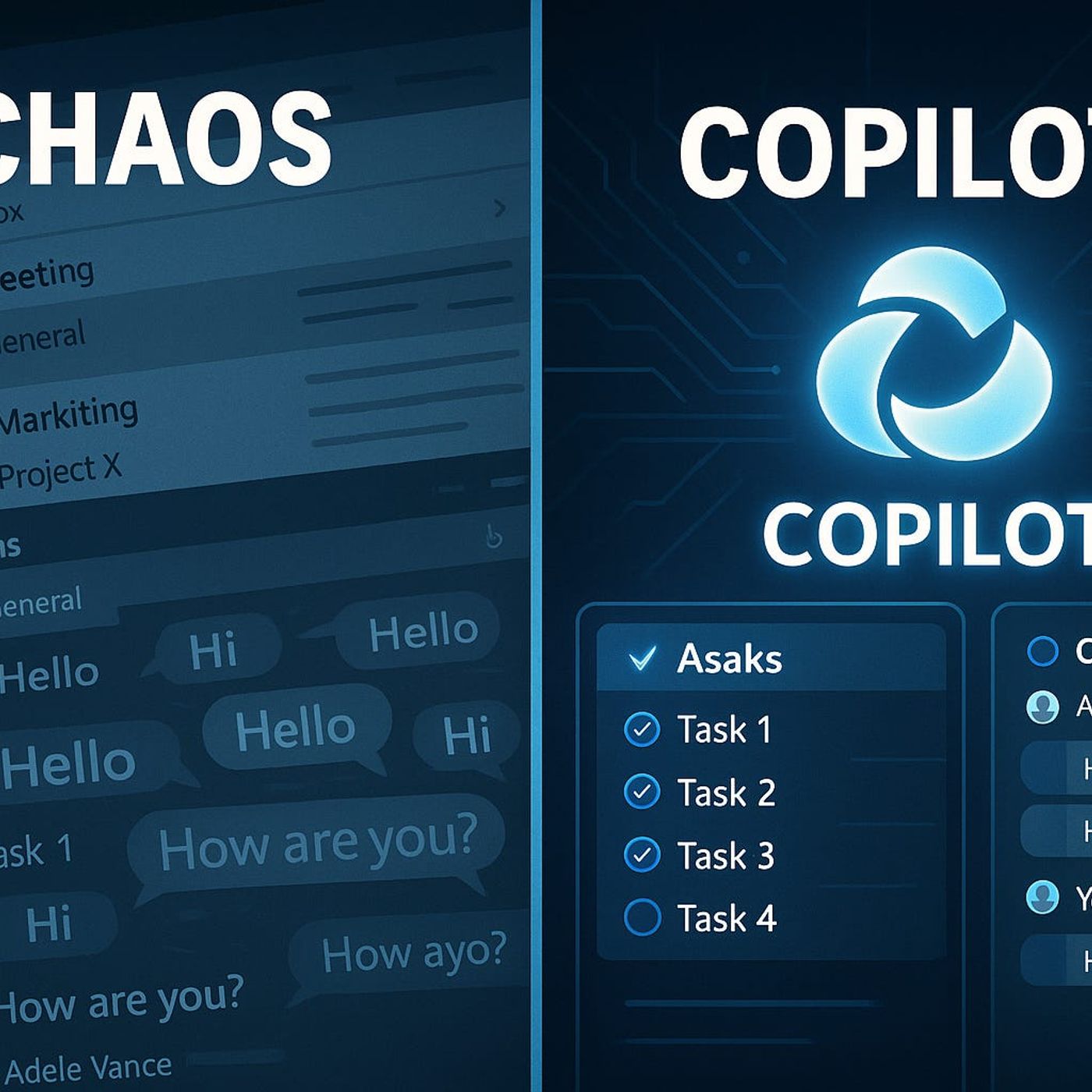
How to Set Up and Use Microsoft Copilot in TeamsMost professionals waste hours every week digging through meeting notes and half‑buried Teams chats looking for key decisions. Microsoft Copilot can handle that in real time—but only if it’s set up correctly. Miss a few configuration steps in Teams and the admin center, and you’re left thinking “Copilot doesn’t really do much here.” In this episode, you’ll see exactly how to enable, configure and actually use Copilot in Teams so it turns chaotic conversations into clear, actionable outcomes instead of more digital noise.We start with why Copilot in Teams matters more than yet another AI demo. Teams is already where your meetings, chats and files live; Copilot doesn’t ask you to go somewhere else, it adds structure on top of the work you’re already doing. That’s the key difference from standalone AI tools: instead of copying transcripts and notes into external apps, Copilot sits directly inside the meeting and channel context, using Microsoft Graph to ground its answers in your actual tenant data. The real promise isn’t “AI can summarize text,” it’s “AI can keep track of decisions, owners and next steps as they happen, so you don’t lose them when the call ends.”Then we walk through what “getting the setup right” actually means. It’s not just flipping a single switch. You need correct licensing, tenant‑level Copilot enablement, and the right Teams and security policies so Copilot can access transcripts and channel content without violating your organization’s rules. We connect this to real behavior: if recordings, transcripts or chat histories are disabled or restricted in certain ways, Copilot will feel blind in exactly the scenarios where you expect it to help. You’ll learn which settings are non‑negotiable, which are optional, and how to test your configuration so you don’t discover gaps live in front of stakeholders.Finally, we focus on everyday usage patterns that turn Copilot from a novelty into a habit. You’ll hear concrete examples: asking Copilot mid‑meeting to list open questions so far, turning a transcript into a clean decision log, or summarizing a long channel thread into “who owes what by when” instead of re‑reading everything yourself. We also cover how to talk about these capabilities with your team so prompts become part of the meeting routine, not something one person experiments with while everyone else ignores it. The goal is simple: fewer follow‑up chaos moments and more meetings that end with clarity because Copilot captured the structure while you focused on the discussion.WHAT YOU’LL LEARNWhy Copilot in Teams is different from generic AI chat tools and matters for real work.Which configuration and policy steps you must get right so Copilot can “see” your meetings and channels.How to use Copilot live in meetings and channels to surface decisions, action items and key points.How to integrate Copilot into your team’s habits so it becomes a reliable part of every important conversation.THE CORE INSIGHTThe core insight of this episode is that Copilot in Teams doesn’t automatically fix meeting chaos—you have to wire it into your tenant and your habits on purpose. Once the setup is correct and your team knows when and how to ask, Copilot turns Teams from a stream of conversations into a living log of clear decisions and next steps you no longer have to reconstruct manually.WHO THIS EPISODE IS FORMicrosoft 365 and Teams admins responsible for enabling and configuring Copilot.Team and project leads who run lots of meetings and are tired of chasing decisions afterwards.Knowledge workers who live in Teams and want AI help that actually fits their daily workflow.ABOUT THE AUTHOR / HOSTMirko Peters is a Microsoft 365 and modern work consultant and host of the M365.FM podcast, helping organizations turn messy Teams conversations into structured, actionable outcomes with tools like Copilot. He works with teams to configure Copilot correctly, design meeting and collaboration habits around it, and reduce the hidden time cost of searching, summarizing and reconstructing decisions after the fact.Become a supporter of this podcast: https://www.spreaker.com/podcast/m365-fm-modern-work-security-and-productivity-with-microsoft-365--6704921/support.
Embed this episode
NOW PLAYING
Use Microsoft Copilot in Teams: Configuration Steps, Best Practices and Real Meeting Use Cases
No transcript for this episode yet
Similar Episodes
No similar episodes found.
Similar Podcasts
No similar podcasts found.